Yubikey
Two YubiKey 5 devices for hardware 2FA — one stays at the desk, one on the keychain as backup.
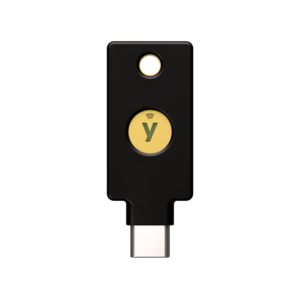
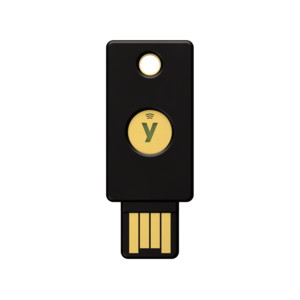
The two keys
| Key | Form factor | Where it lives | Primary use |
|---|---|---|---|
| Key 1 | YubiKey 5C NFC (USB-C) | Plugged into the PC (or nearby) | Day-to-day logins — Cloudflare, Bitwarden, Windows Hello |
| Key 2 | YubiKey 5 NFC | Keychain | Backup when Key 1 is unavailable; NFC tap on phone |
Both keys should be registered everywhere critical so losing one key does not lock you out. PINs and recovery codes live in Vaultwarden — not in SaxDocs.
Where each key is used
Cloudflare 2FA
- dash.cloudflare.com requires the Yubikey at login — see Cloudflare
- Register both keys under Cloudflare account security settings
- Backup codes: store in Vaultwarden
Bitwarden (Vaultwarden)
- Master vault unlock and 2FA for Bitwarden can use FIDO2 / security key
- Register both keys in Bitwarden account settings at vault.saxobroko.com
- If the desk key is unplugged, use the keychain key + NFC on phone
Other services
Add other sites that require these keys — GitHub, Google, etc.
Backup key policy
- Keychain key is the backup for day-to-day; keep it on you when traveling
- Desk key is convenience — do not travel with only the desk key registered
- If one key is lost: revoke it in Cloudflare / Bitwarden / every service immediately, then register a replacement
- YubiKey PIN: required on each use; too many wrong PINs can block the key — recovery details in Vaultwarden
How to use when authenticating
Windows
- A popup asks you to insert Security Key or enter the PIN
- If the security key is not inserted, insert it (USB-C desk key)
- Enter the PIN
- Touch the gold circle
- You should be authenticated
iOS
- A popup asks you to hold the phone near the security key
- Enter the PIN
- Tap the keychain key (NFC) to the back of the phone
- You should be authenticated
Related
- Cloudflare — account 2FA
- Bitwarden — Vaultwarden
- Authentik — SSO (password-based; keys protect Cloudflare/Bitwarden admin)