Windows Network Drive
TrueNAS shares folders over SMB. Windows maps them as drive letters for easy access.
First time setup
- Open File Explorer
- Click Network or type the server path in the address bar
- Log in with TrueNAS credentials when prompted
Try \\192.168.2.203 or the SMB hostname configured on TrueNAS.
Mapping A: for media
- File Explorer → Map network drive
- Drive letter: A:
- Folder: path to the media share (e.g.
\\192.168.2.203\Media— confirm exact name in TrueNAS Shares) - Check Reconnect at sign-in
- Finish
Folder layout
Media/
├── Shows/
│   └── Show Name (Season 1 Release Year)/
│       └── Season 01/
└── Movies/
    └── Movie Name (Release Year)/
See Adding media for naming rules.
Legacy name
The old Synology was called Morpheus (\\Morpheus\Media). If docs or screenshots still say Morpheus, they mean this TrueNAS share.
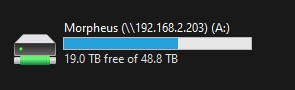
If the drive disappears
- Check TrueNAS is on — can you open dsm.saxobroko.com?
- Re-map the drive
- Restart Windows if it keeps happening
More: Common Issues